Shopify App : Fly To Cart Animation Effect
Show flying image animation and more to increase your sales
About Fly To Cart Animation Effect
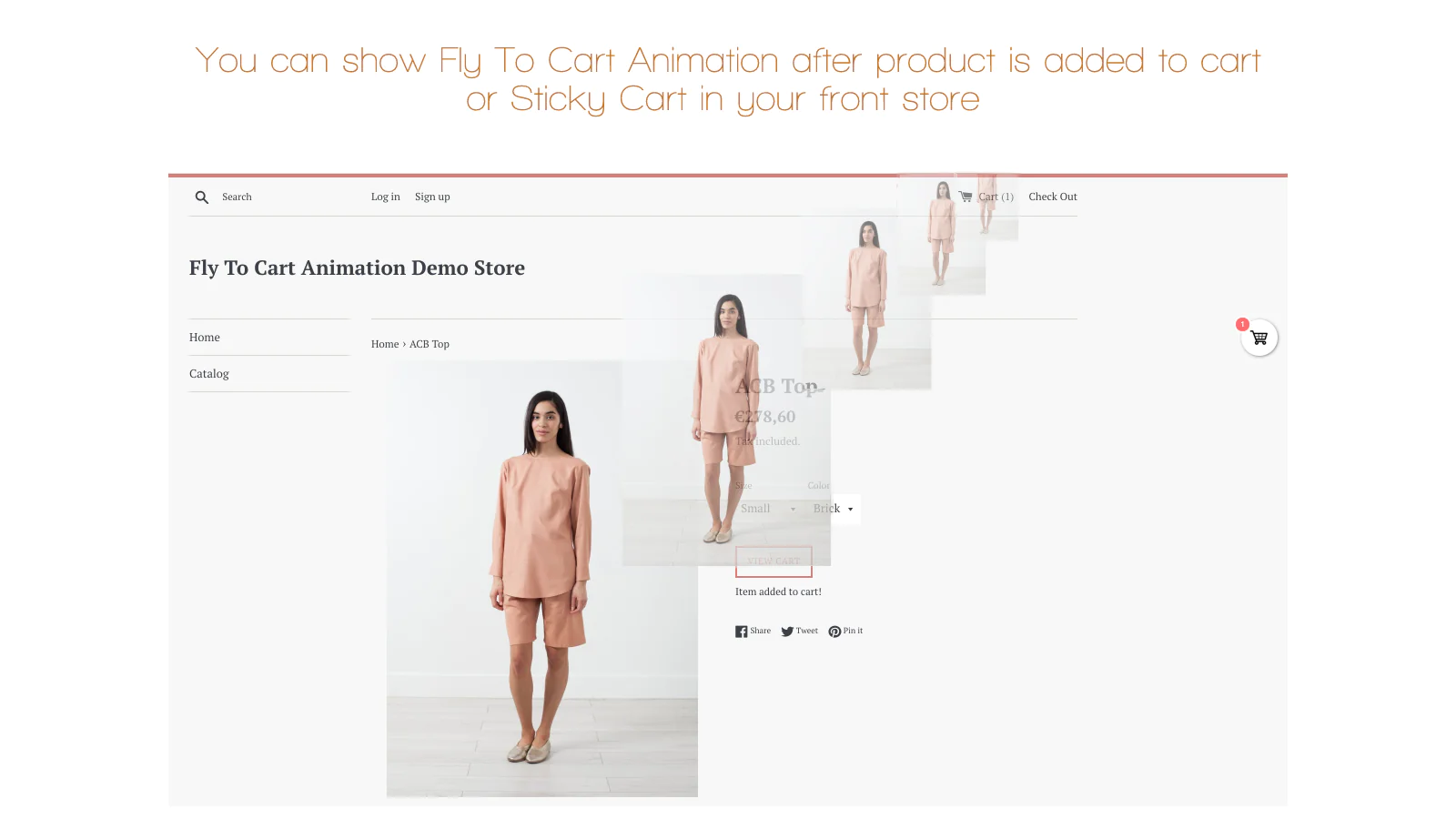
Improving UX for your customer : With smooth flying animation, you can offer your customers amazing user experience. Effect is show always while product is adding to cart.
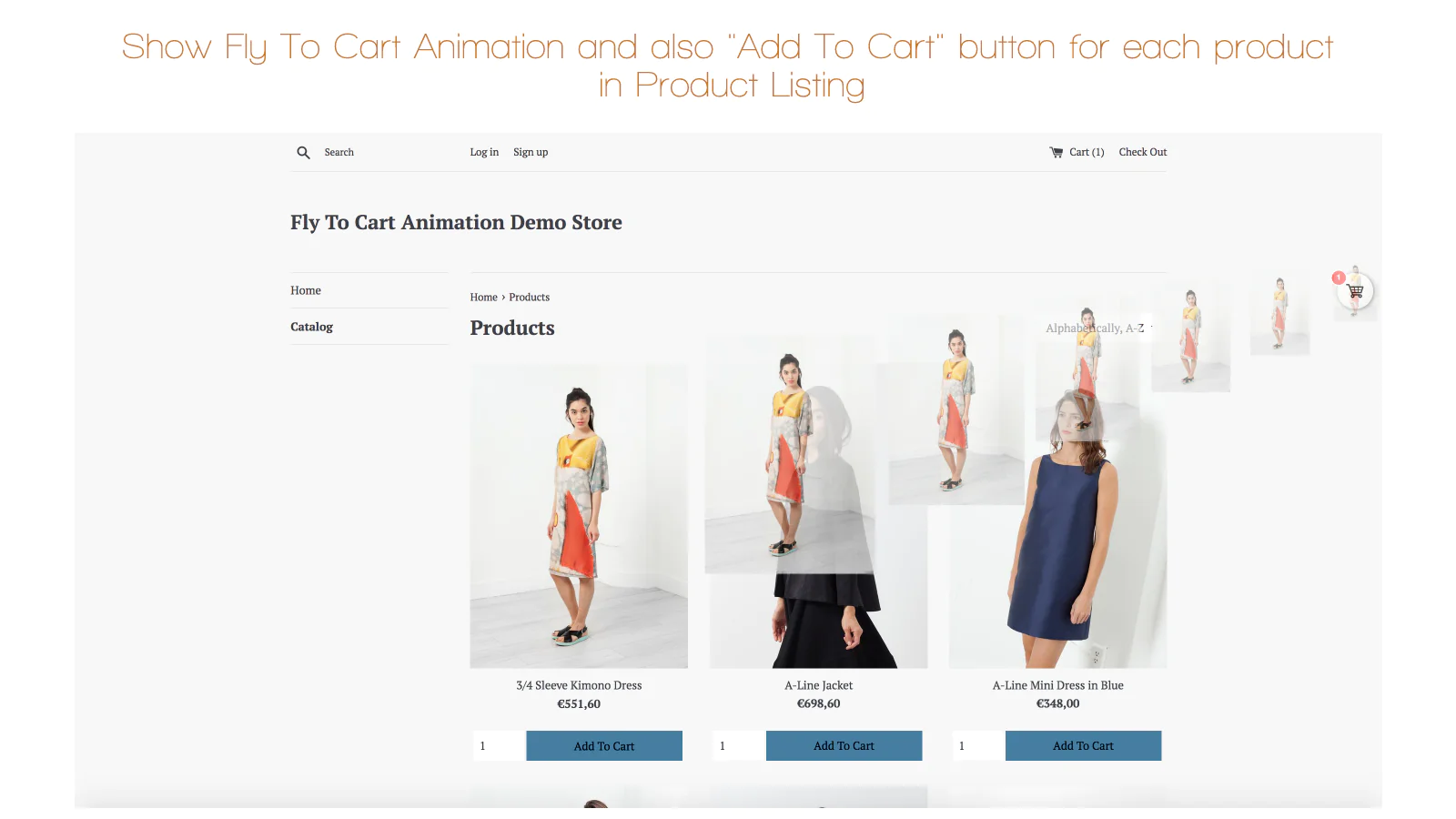
Quick Buy from product listing : Increase revenue & sales by displaying "Add To Cart" button for every product listing pages - Home page, Collection page, Search page, ...
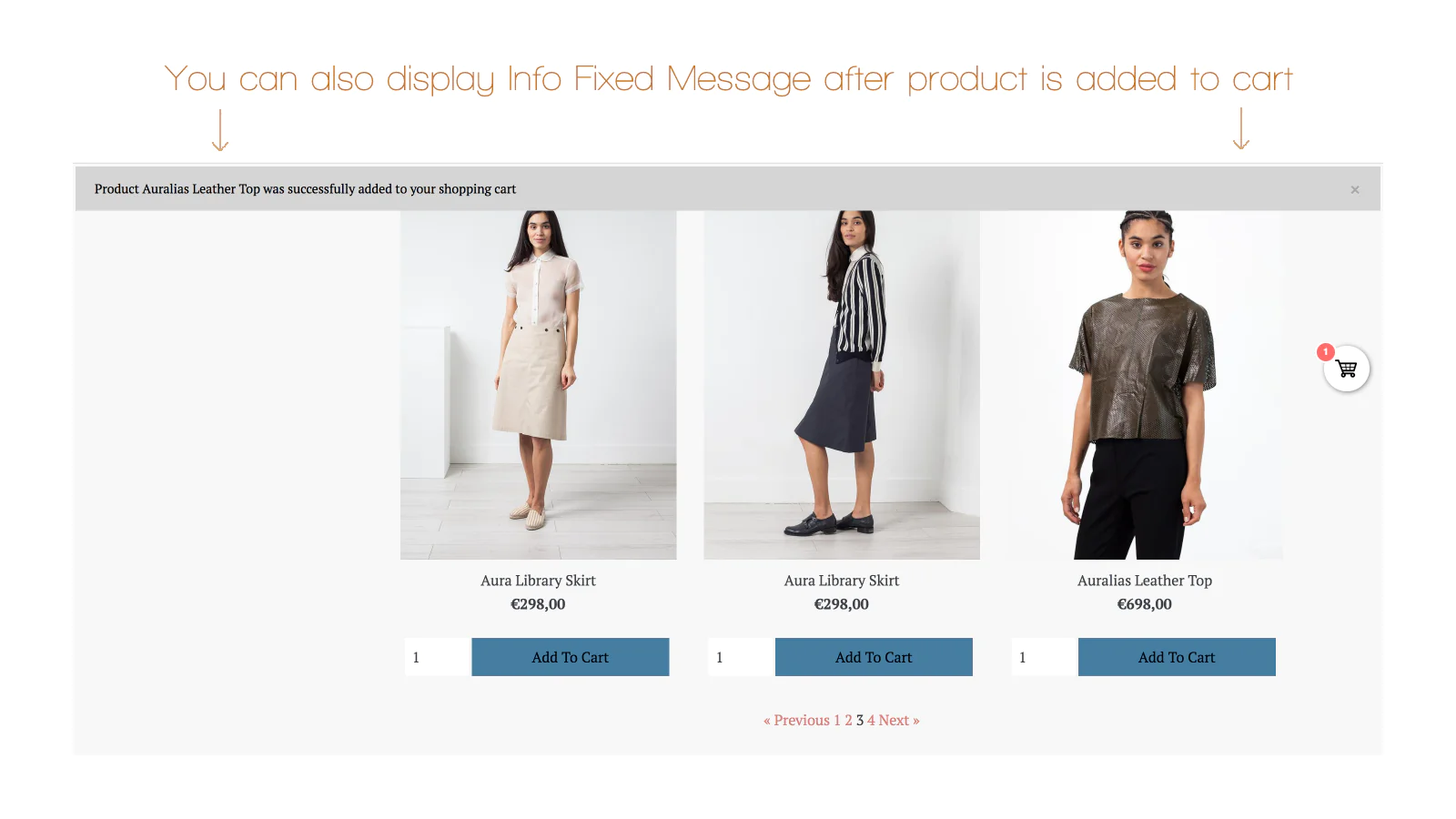
Sticky Cart for easy checkout : Redirect your customers directly to checkout by clicking to sticky cart, which will be always visible. Make order faster!
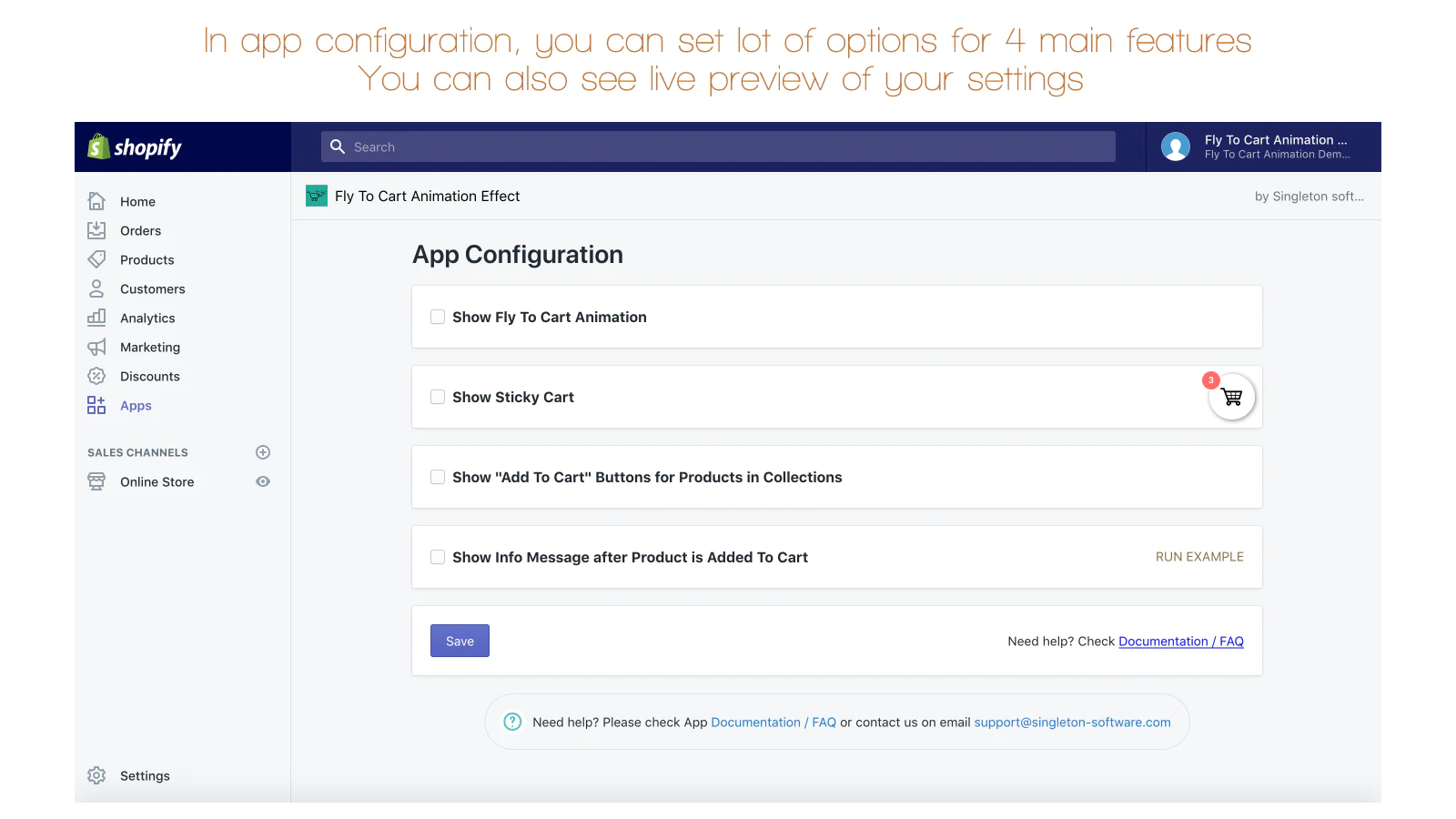
With this All-In-One App, you can use 4 important features, which could increase your sales and improve customer experience.
1. Show Fly To Cart Animation Effect
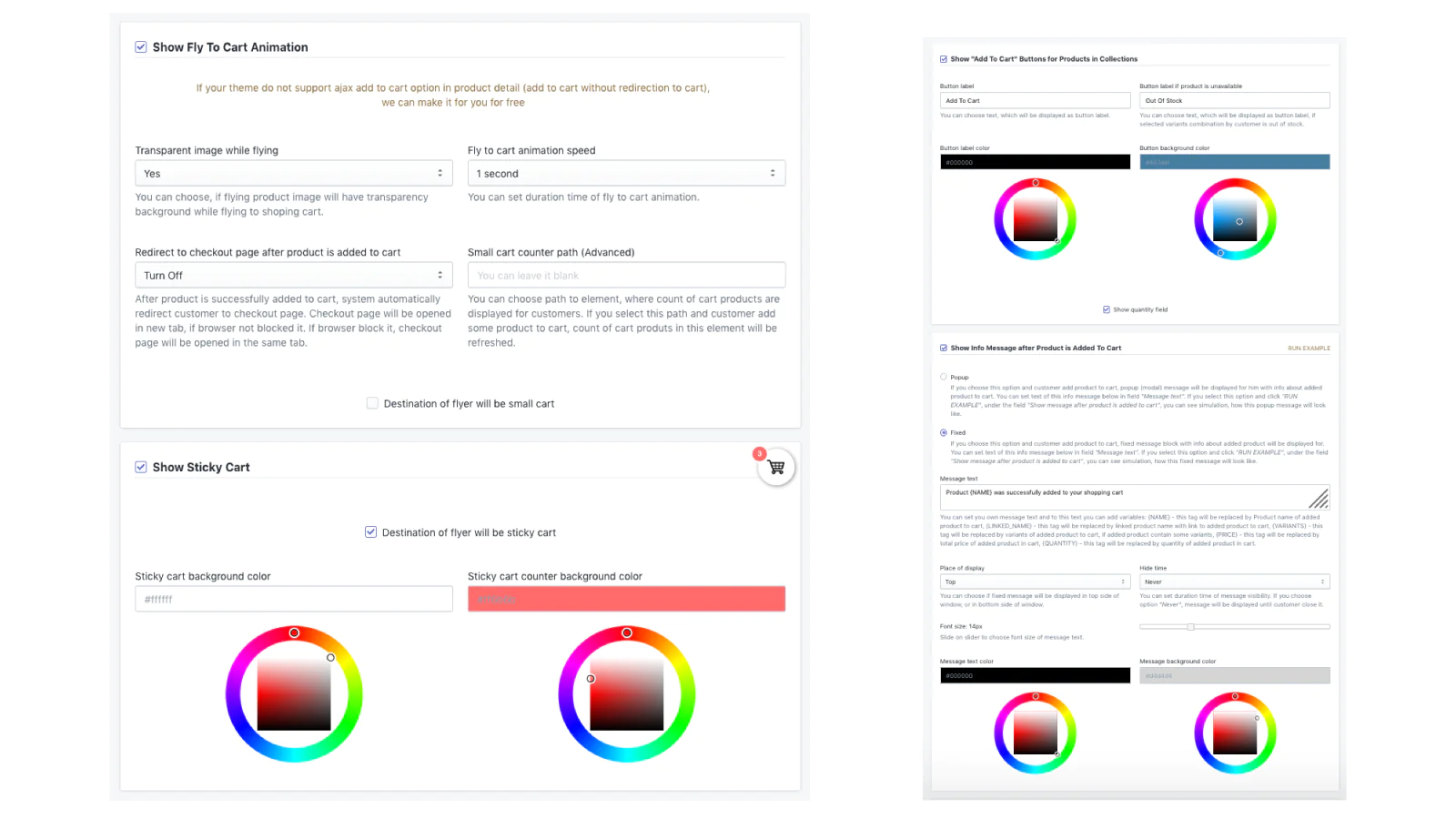
After your customer click to "Add To Cart" button, smooth flying animation of product image will be displayed for him. Product image will fly from original product image position, to small cart of your template, or to Sticky Cart (if you use displaying Sticky Cart option from this app). This effect will improve UX to your customers. Smooth flying animation will run only if selected product will be successfully added to cart. If your custom theme do not support ajax add to cart option in product detail (add to cart without redirect to cart), we can make it for you for free. In app configuration, you can set:
- Fly To Cart Animation speed
- Transparent image while flying (Yes, No)
- Redirect to checkout page after product is added to cart (Yes, No)
- and more...
2. Show Sticky Cart
You can also show floating Sticky Cart in your front store for your customers. Sticky Cart will be always visible. Your customer will see count of products added to cart in there. After customer click on Sticky Cart, system will automatically redirected him to checkout page. In app configuration, you can set:
- Background color of Sticky Cart (color picker)
- Background color of product counter in Sticky Cart (color picker)
- and more...
3. Show "Add To Cart" Buttons for All Products in Collections
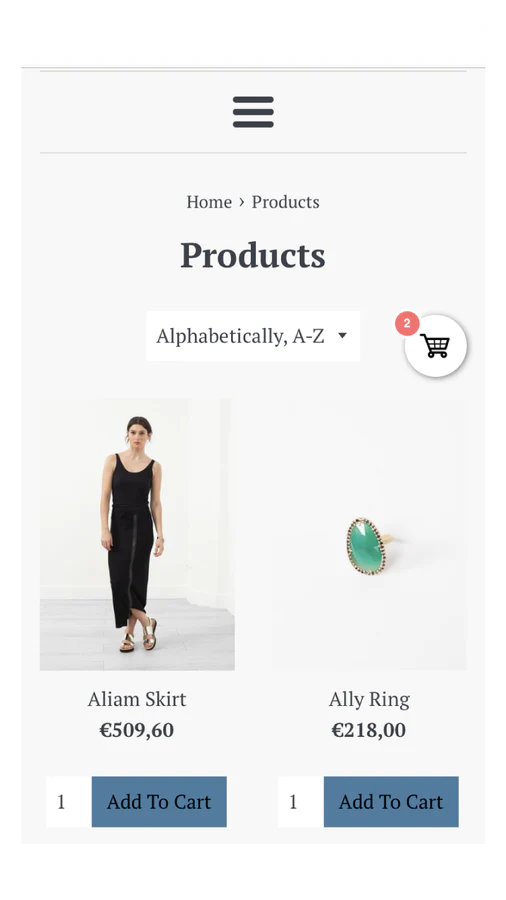
With this app you can even display Quick Buy Button for each product in your product listing. Your customer can add product to cart faster, without visiting product detail page. If Fly To Cart option is enabled, product image will fly to cart after customer use this button. In app configuration, you can set:
- "Add To Cart" Button label
- "Add To Cart" Button label if product is out of stock
- Background color of "Add To Cart" Button (color picker)
- Show quantity field (Yes, No)
- and more...
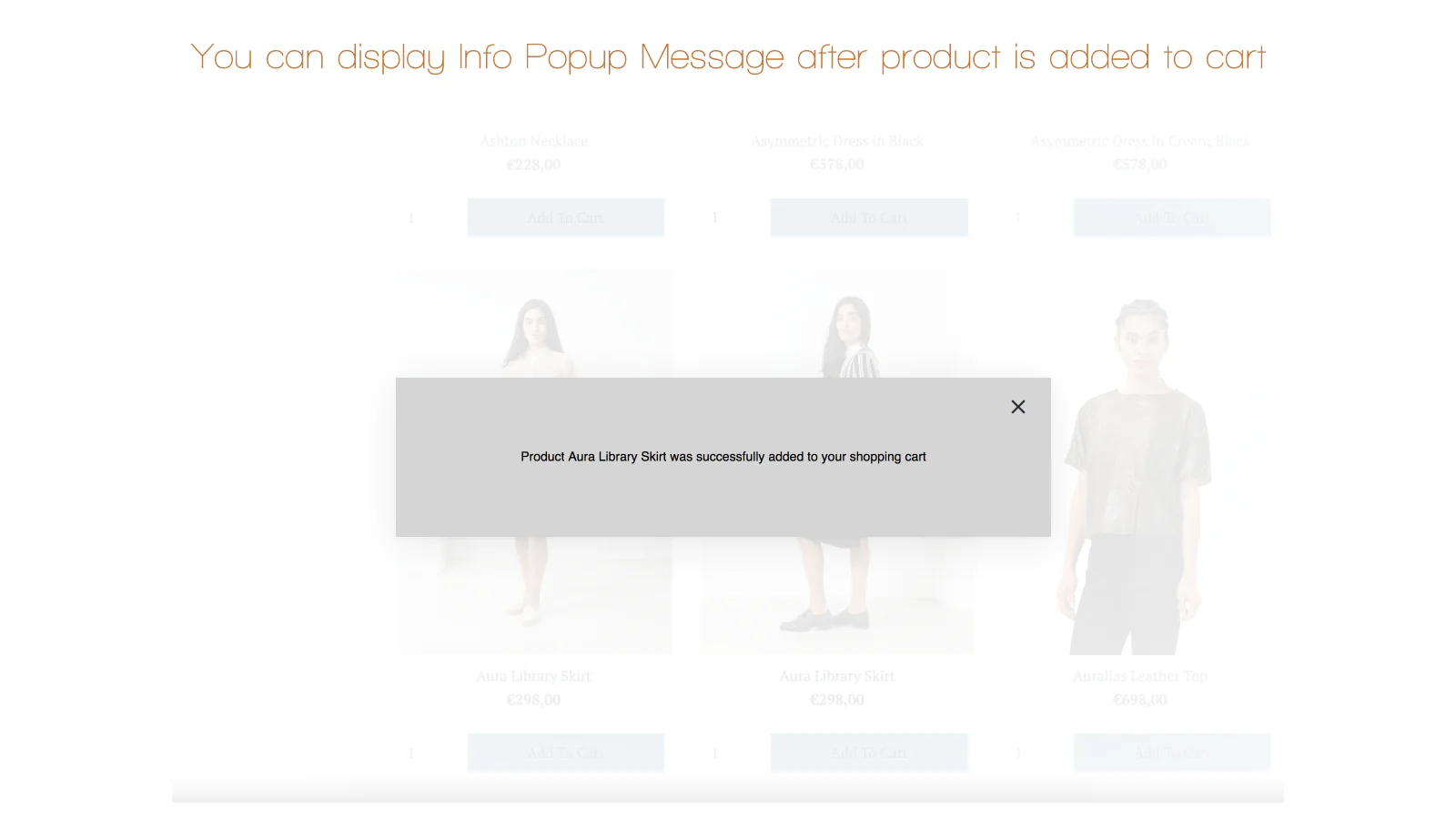
4. Show Popup Info Message after Product is added to cart
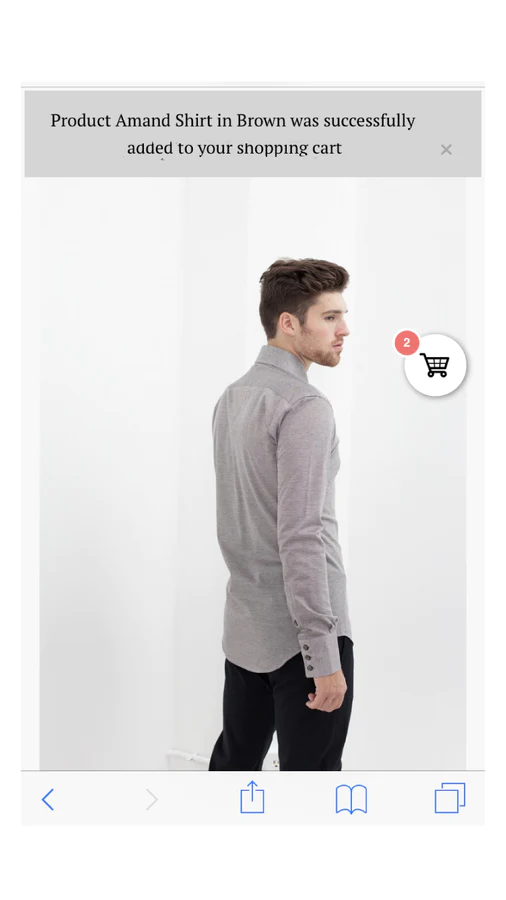
After your customer added some product to cart, you can display summary info about added product to him. This summary info message can include variables like product name, product price, selected product variants, added product count, or linked product name. You can write your own message like you wish to textfield, where you can use any of variables. Even you can select type of popup, which will be displayed to customer with your own message, which will be displayed after product is added to cart. In app configuration, you can set:
- Type of Info Message (Popup, Fixed)
- Own message text, where you can use lot variable about product added to cart
- Background color of Info Message (color picker)
- Text color of Info Message (color picker)
- and more...
Seamless workflow: use directly in Shopify admin
About the Author
Matej Kontros is an E-Commerce expert and app developer with over a decade of professional experience in IT.
Matej has worked for organisations of all types and sizes, including global players, startups, and agencies. He designed, developed, and maintained complex projects.
Matej's expertise includes e-commerce, software engineering, web development, systems administration, internet security, managing projects, and building teams.
Visit his website at [ Web Linkedin ] or contact him at [email protected].